Rei User Guide
Rei is your calm study companion: keep todos, deadlines, and events in one place, find what matters, and take things one task at a time.
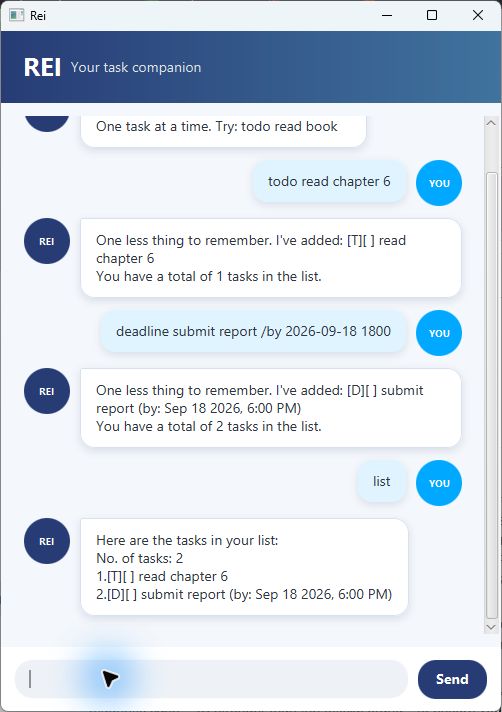
Get started
- Install Java 25. In a terminal, run
java -versionto check your version. - Download rei.jar from the latest release.
- Put the JAR in a folder where you can save files. Open a terminal in that folder
and run
java -jar rei.jar. - Type
todo read bookinto the field at the bottom and press Enter or Send.
The window can be resized. Replies wrap to fit its width. Errors have a red outline and a Please try again heading; correct the command and send it again.
Commands at a glance
Use lowercase command names. Replace the CAPITALIZED placeholders below with your own values; do not type the placeholders themselves. Leading and trailing spaces, extra spaces between a command and its arguments, and tabs are accepted.
| Action | Format | Example |
|---|---|---|
| Add a todo | todo DESCRIPTION |
todo read chapter 6 |
| Add a deadline | deadline DESCRIPTION /by DATE TIME |
deadline submit report /by 2026-09-18 1800 |
| Add an event | event DESCRIPTION /from DATE TIME /to DATE TIME |
event study group /from 2026-09-18 1400 /to 2026-09-18 1600 |
| Show tasks | list |
list |
| Complete a task | mark NUMBER |
mark 1 |
| Reopen a task | unmark NUMBER |
unmark 1 |
| Remove a task | delete NUMBER |
delete 1 |
| Add a tag | tag NUMBER #TAG |
tag 1 #school |
| Find by text | find TEXT |
find report |
| Find by tag | find #TAG |
find #school |
| Find by date | find DATE |
find 2026-09-18 |
| Exit | bye |
bye |
Add and manage tasks
Todos need a description. Deadlines also need a due date and time. Events need both
a start and an end, with the end strictly later than the start. Include spaces
around /by, /from, and /to, and supply each required separator once.
For example, todo read chapter 6 produces:
One less thing to remember. I've added: [T][ ] read chapter 6
You have a total of 1 tasks in the list.
In list, [T] is a todo, [D] a deadline, and [E] an event. [X] means done;
[ ] means not done. Completed tasks stay in the list until you delete them.
Repeated task descriptions are allowed, for example when the same reading is
assigned twice.
Use the number shown by list or find for mark, unmark, delete, and tag.
Numbers start at 1. Deleting a task renumbers later tasks, so check list again
before your next change. Deletion has no undo; re-add the task if needed.
Dates and times
Dates accept yyyy-MM-dd, yyyy/MM/dd, dd/MM/yyyy, or dd-MM-yyyy.
For day-first formats, one-digit days and months also work, such as 9/2/2028.
Times use four-digit, 24-hour format: 0900 is 9 AM and 1800 is 6 PM.
Use a space between date and time. Times are local clock times without time zones.
Impossible dates and times, such as February 30 or 2400, are rejected.
find DATE shows deadlines due on that day and events overlapping that calendar
day, including their start and end dates. It does not show undated todos.
Date-shaped searches are treated as dates; other searches match description text.
Find and organize
find report matches descriptions containing report, ignoring letter case.
A phrase such as find read book matches that contiguous phrase. Results retain
their original list numbers, so you can act on a match directly.
Tags start with #, followed by letters A-Z, digits, underscores, or hyphens.
Add one tag per command. tag 1 #School stores #school; adding it again is
rejected. find #school matches that exact tag, ignoring case. A task can have
multiple tags. There is no command for removing a tag.
Saving and recovery
Rei automatically saves each successful task change to data/rei.txt, relative
to the folder from which you launch it. Keep that folder consistent between runs.
A missing data file starts an empty list and is created on the first saved change.
Back up data/rei.txt before moving or manually repairing it.
If saving fails, Rei reports the problem and leaves your tasks unchanged. Check
that the folder is writable and that data/rei.txt is a file, then retry.
If the saved file cannot be read or contains damaged records, Rei warns you and allows viewing and searching any valid tasks it could load. Changes are blocked to protect the original file. Close Rei, back up the file, restore a known good copy or repair it, and restart. Keep only one instance of Rei open per data folder.
For an unknown command, missing argument, or invalid task number, follow the
example in the error message. list and bye take no extra arguments.
Credits
Rei builds on the NUS CS2103 iP starter and the SE-EDU JavaFX tutorial. Its name is inspired by Rei of IVE. Week 6 enhancements and this guide were developed with OpenAI Codex assistance and checked against the project’s tests.